![GRABWEB [India]](/templates/lagom2/assets/img/logo/logo_big.454175622.gif "GRABWEB [India]")
To upload files through Plesk please follow the following steps:-
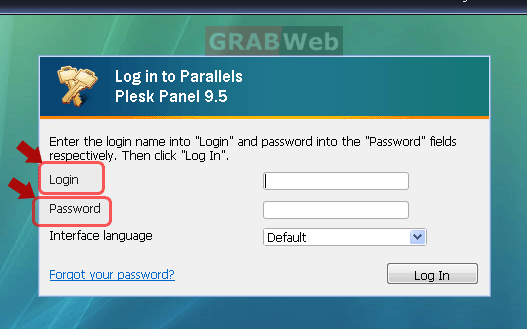
1) Login to Plesk control panel.
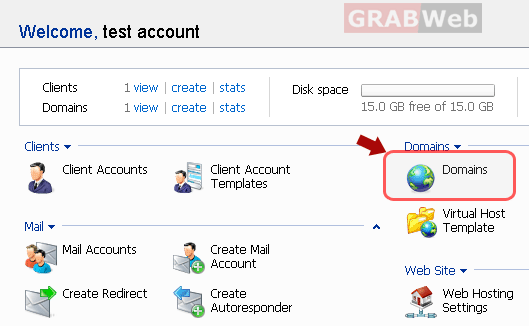
2) Click the "Domains" shortcut in the navigation panel.
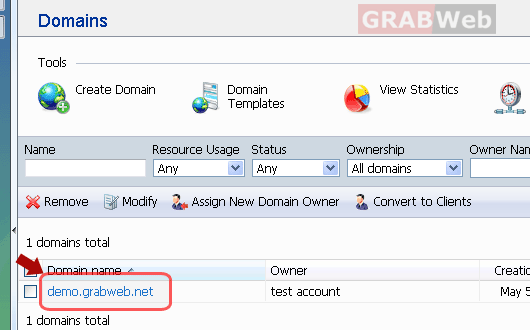
3) Click the required domain name in the list.
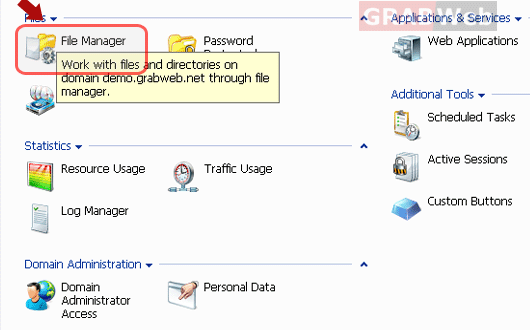
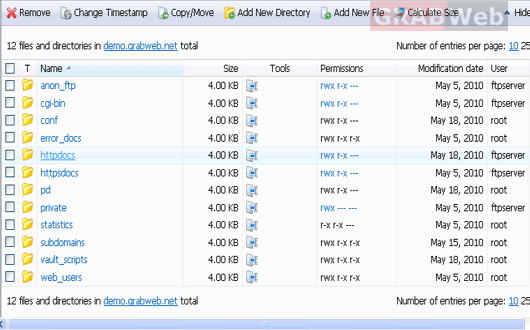
4) Click on "File manager.
5) Click on directory under which you want to upload the files.
NOTE:-You can only upload files from the Plesk file manager. You can not
upload the whole directory from the panel.You need to use FTP
server if you want to upload the whole folder in your directory.
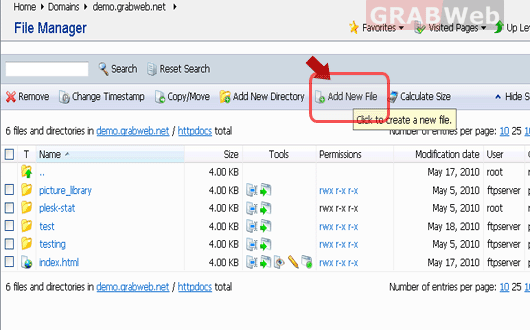
6) To upload a file from the local machine, click Add New File, specify the path to the
location in the File source box (or use the Browse button to locate the file), and
click OK.
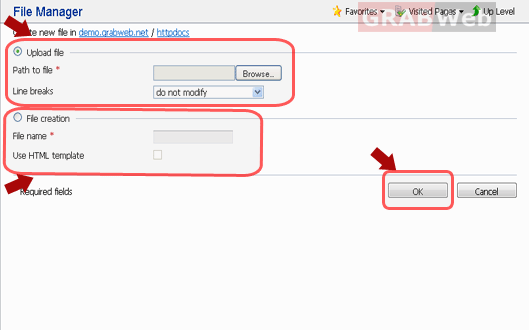
7) To create new files in the required directory, click Add New File, in the File creation
section specify the file name, select the Use html template check box, if you want
file manager to insert some basic html tags to the new file, and click OK.
Note:-A page will open allowing you to enter the content or html-formatted
source of a new file. After you are done, click OK.
